
What in the FPS?
Animation is the art of creating moving images through a series of still pictures, giving the illusion of motion.
In animation, we call these still pictures "frames".
Animations can be played at different frame-rates, or frames-per-second (fps).
-
The most commonly used frame-rates are 8fps, 12fps, 24fps, 30fps, and 60fps.
-
24fps is the standard for professional animation.
-
-
The higher the fps, the smoother the animation will appear.
-
The human brain can only process about 10 to 12fps. Frame rates faster than this are perceived to be in motion.
-
A 10 second animation at 24fps might mean 240 drawings are needed. HOWEVER, animators love to save themselves extra work.
-
Animation is usually done “on twos”, meaning each drawing takes up 2 frames. This means you only draw 12 frames per second of the 24fps animation
-
-
However, for our animations, we will use 12fps.
KRITA QUICK-START GUIDE:
aka "How to Set up KRITA for 2D Animation"
FIRST: SET UP YOUR WORKSPACE
1) Launch Krita and start a new project.
-
For exercises, make it 800x600 pixels & Resolution: 72
2) go to Window (at the top) > Workspace > select Default
3) go to Settings (at the top) > Dockers
-
> select Animation Timeline
-
You should see a new panel appear across the bottom of your screen.
-
Click the ONION icon in its upper-right, to add the Onion Skins docker.
4) To save your setup: go to Window > Workspace > select New Workspace
-
name it "MY ANI" (or something to that effect).
ANIMATION TIME
-
Create a new transparent layer above the background (press the + icon on the Layers Panel)
-
This is where you’ll draw your animation.
-
Make sure it is selected.
-
-
Set your Frames Per Second (FPS)
-
Look at the Timeline panel's upper-right corner. You should see an options icon
-
Click it and change Frame Rate to 12.
-
-
Add your Frames
-
On your timeline, you should see your new layer listed above the Background. It likely called itself "Paint Layer 1".
-
Right-Click on the FIRST rectangle in the timeline. Pick Keyframes > Insert Multiple
-
Set the number of frames to the number you want. You can always add/remove frames later.
-
Leave the Timing as 1.
-
Side = Right/After
-
Click OK.
-
-
Make sure your onion skin feature is on.
-
Click the lightbulb icon just left of your frames on the timeline to turn it on.
-
Onion skinning lets you see frames before and after your current frame—this helps keep your drawing smooth and consistent.
-
-
Start drawing frame by frame
-
Use the brush tool to draw the main shapes and movement in each frame.
-
Use Pencil-2 in blue for the initial pass
-
You can always use a different brush for the cleaned-up animation.
-
-
Focus on capturing motion, not every tiny detail.
-
Remember: make it exist first. You can make it look good later.
-
-
-
Use keyframes and inbetweens
-
If you want, you can draw key poses first, then fill in the frames between to save time.
-
Straight-ahead animation (drawing frame-to-frame) can be more chaotic, but also lends itself to more organic movement.
-
Pick the approach that suits the motion you are going for.
-
-
-
Play back your animation frequently
-
Use the timeline controls to watch your work and check the flow of motion.
-
Try watching your animation with the video layer hidden.
-
-
Make adjustments as needed
-
Tweak your drawings to improve smoothness and accuracy.
-
Exercise Before Diving in the Deep End
01
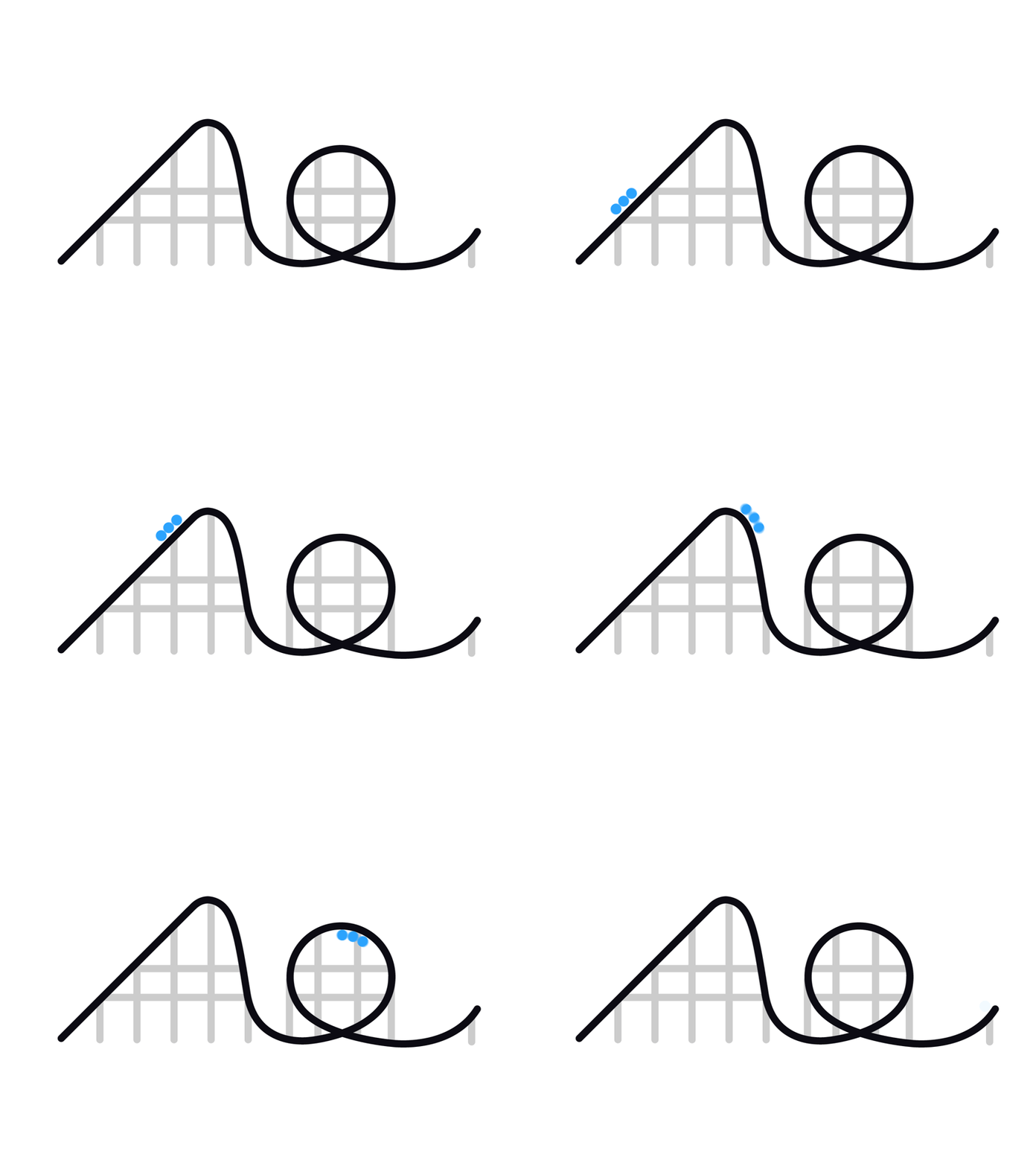
Rolling Ball (TIMING)
Time: 1/2 class - 1 class
Animate: a ball rolling along a roller coaster (the bouncing will come later when we learn to stretch and squish).
File Dimensions: 800x600 pixels & Resolution: 72
^ Use these for all of the exercises.
02
Bouncing Ball (Stretch and Squish)
Time: 1 class
Animate a ball rolling off the abrupt end of a rollercoaster and bouncing on the ground.

03
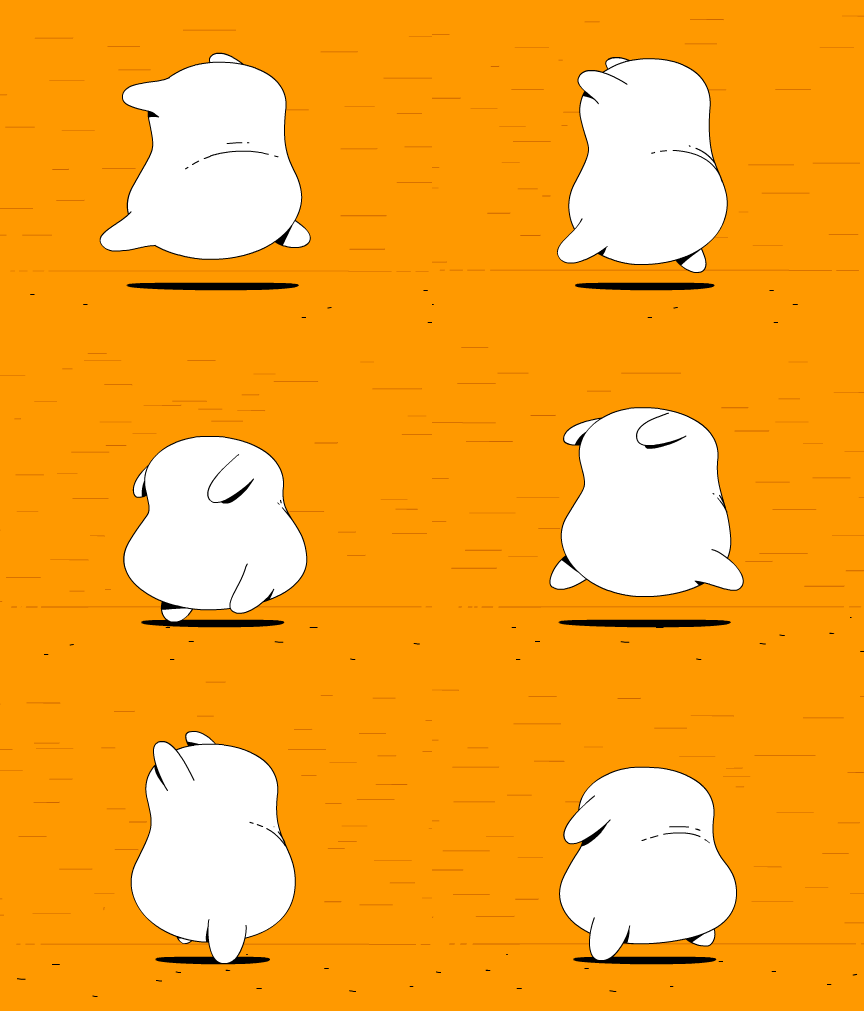
The Potato Sack (Path of Action)
Time: 1-2 classes
Animate a little potato sack hopping (flopping?) from one side of the canvas to the other
Make this animation with a PENCIL-2, set to BLUE
- Pencil gives texture, and you can control how light/dark it is with your pen pressure (not just the size).
-
Blue is the colour with the MOST contrast between light and dark
-
fun fact: Russian has two completely different words for blue, depending on if it's light or dark.
-
The goal is not to make something beautiful.
Get the movement down, as rough and loose as you can.
You can add details and refine your drawings later.
Play your animation to test its motion.
Get someone else to look at it --- fresh eyes can really help, especially after you have been looking at the same thing for a while.
04
Jumping and Falling
Time: 1 class
Animate a character jumping up and falling back down
Make this animation with a PENCIL-2, set to BLUE
Check out Williams' Animators Survival Kit for examples of jumping and other animations
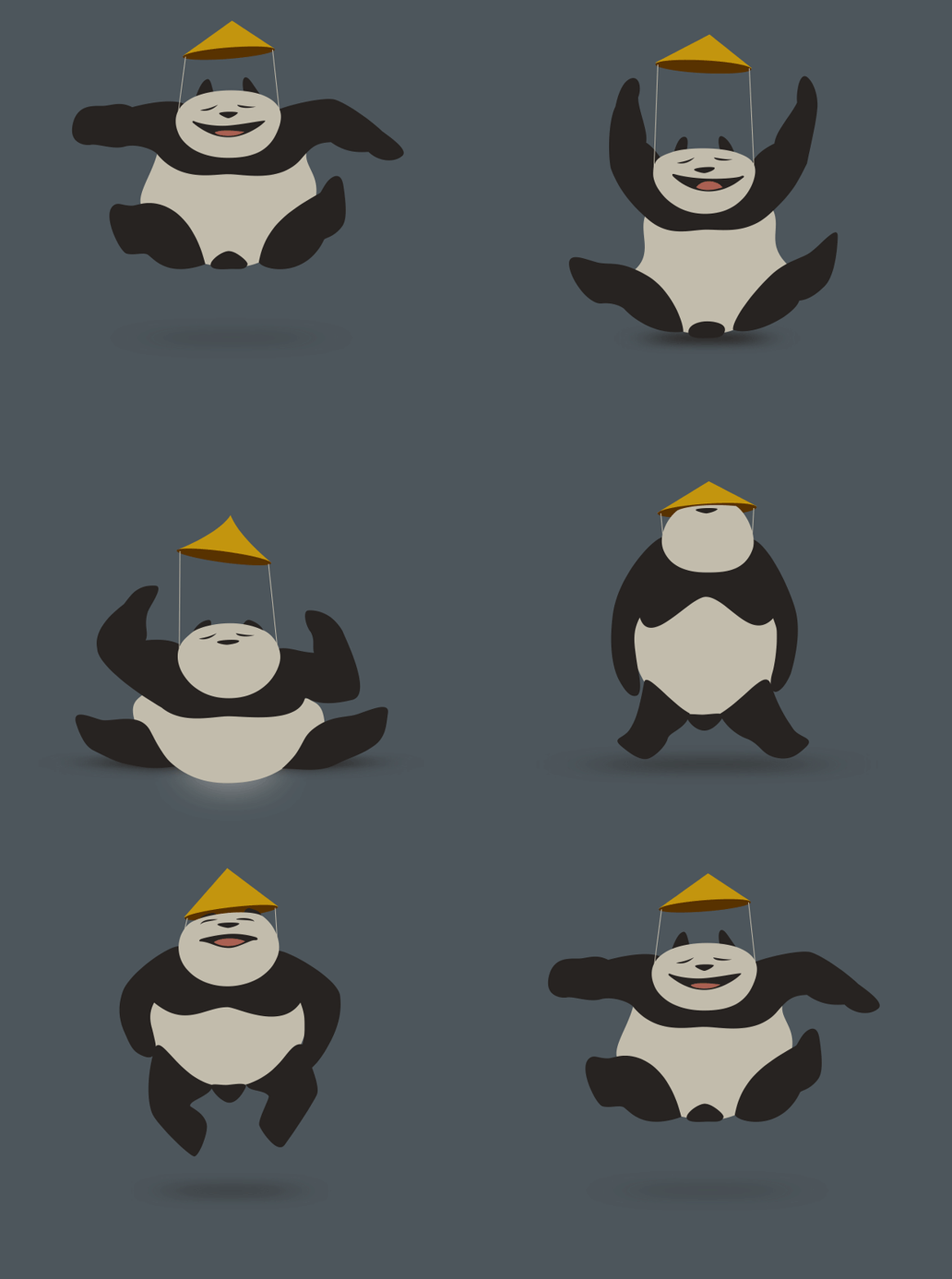
Click the panda to see the behind-the-scenes.
05
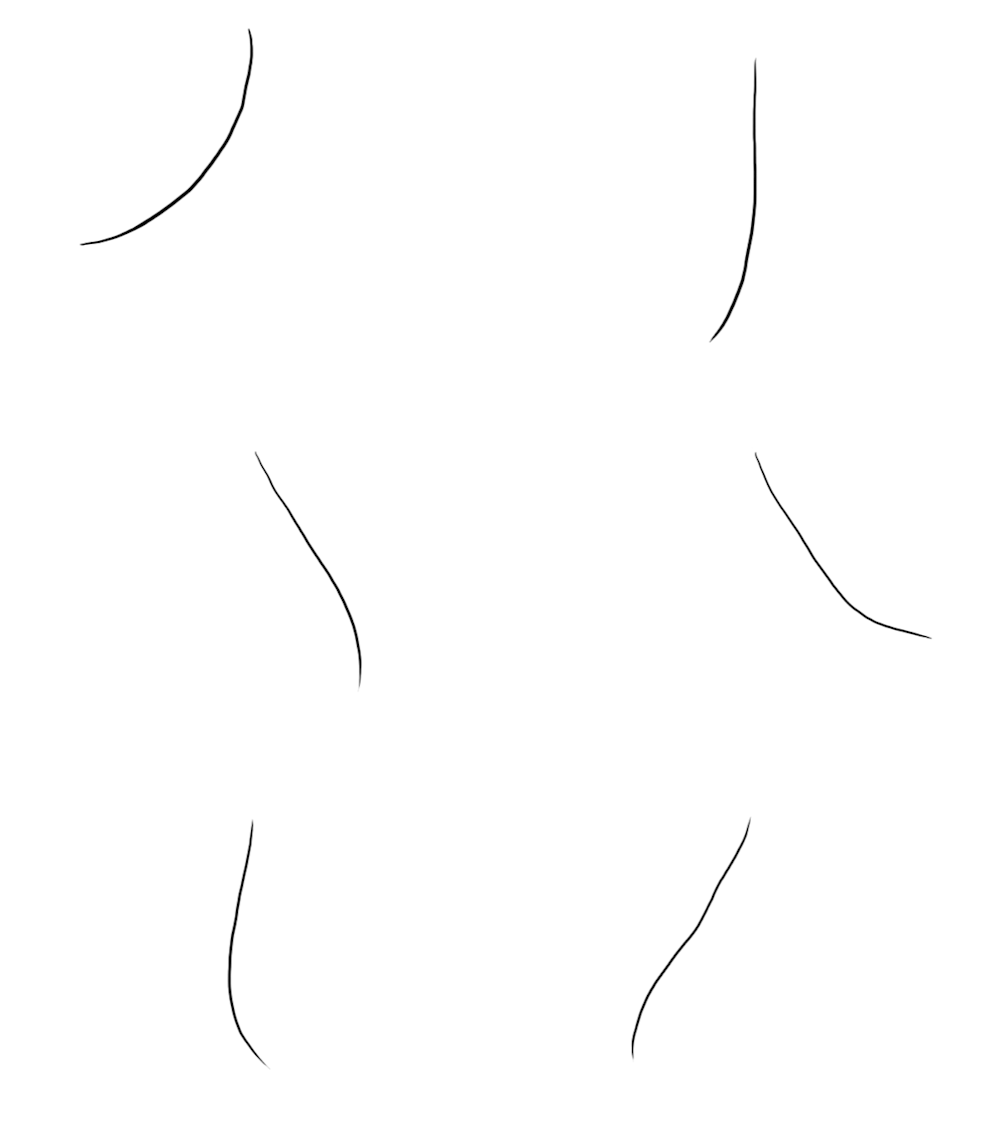
Swinging Rope (Follow-Through)
Time: 1-2 classes
Animate a rope swinging back and forth
Make this animation with a PENCIL-2, set to BLUE
06
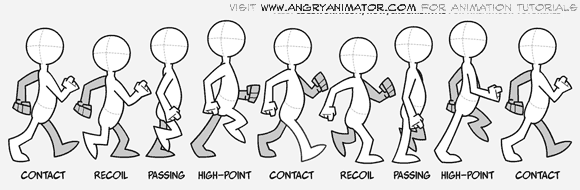
Walk Cycle
Time: 2 classes
Animate a character taking a walk.
Make this animation with a PENCIL-2, set to BLUE
See the breakdown of a walk in Williams' Animators Survival Kit pages 107-113.

07
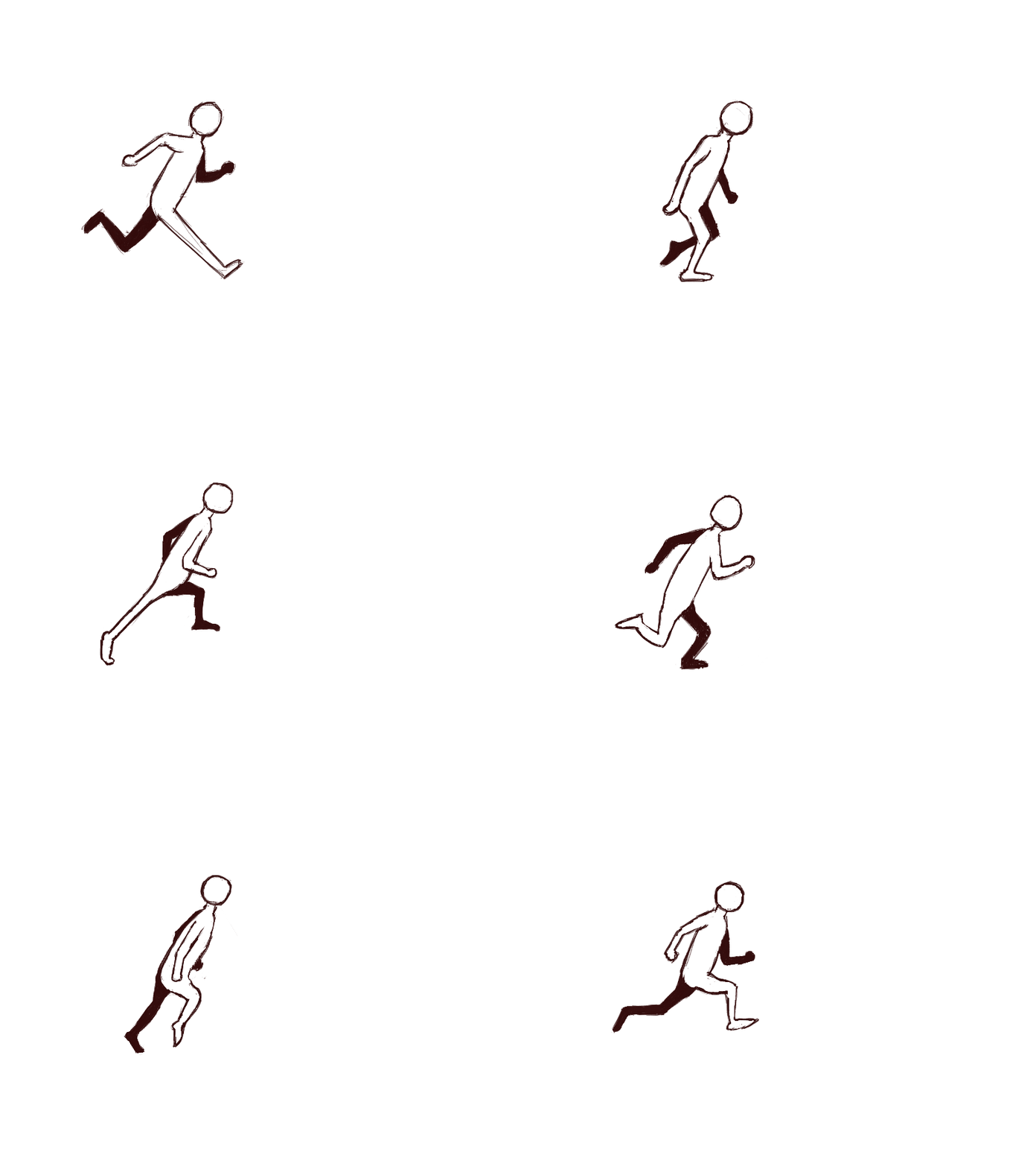
Break into a RUN
Time: 2 classes
Animate a character running
Make this animation with a PENCIL-2, set to BLUE